Intro
Project overview
In this project, I will demonstrate how to use AWS IAM to control access and permission settings in our AWS Account. I’m doing this project to learn about Cloud Security Foundations.
Tools and concepts
Services I used were AWS EC2, IAM Key concepts I learnt include IAM users, policies, user groups, permissions and account aliases. I also learned how to use the Policy Simulator and how JSON policies work.
Project reflection
This project took me approximately 1 hour. The most challenging part was understanding the Policy Simulator and understanding JSON policies.
Tags
What I did in this step
In this step, I will launch two EC2 instances because we need to boost Nextwork’s computing power - we are expecting more users and traffic over the break.
Understanding tags
Tags are key-value pairs that function as metadata to label, organize, and manage resources like EC2 instances or S3 buckets. Useful for categorizing resources such as purpose, owner or environment.
My tag configuration
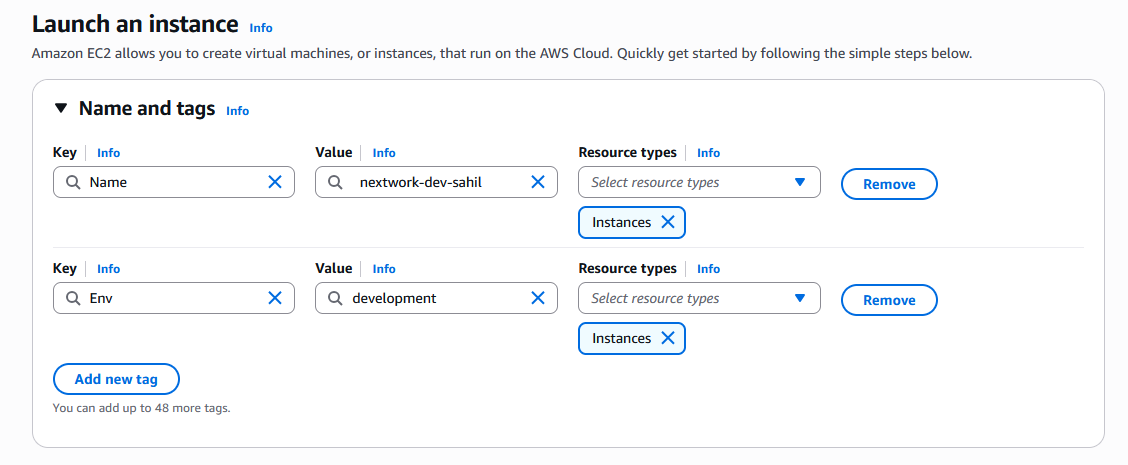
The tag I’ve used on my EC2 instances is called ENV. The value I’ve assigned for my instances are ENV: development and ENV: production.
IAM Policies
What I did in this step
In this step, I will use IAM policies to control the access level of a new NextWork Intern, because they should have access to the DEV environment but not to the PROD environment.
Understanding IAM policies
IAM Policies are like rules that can determine who can do what in our AWS account. I am using policies today to control who has access to our production environment instance.
The policy I set up
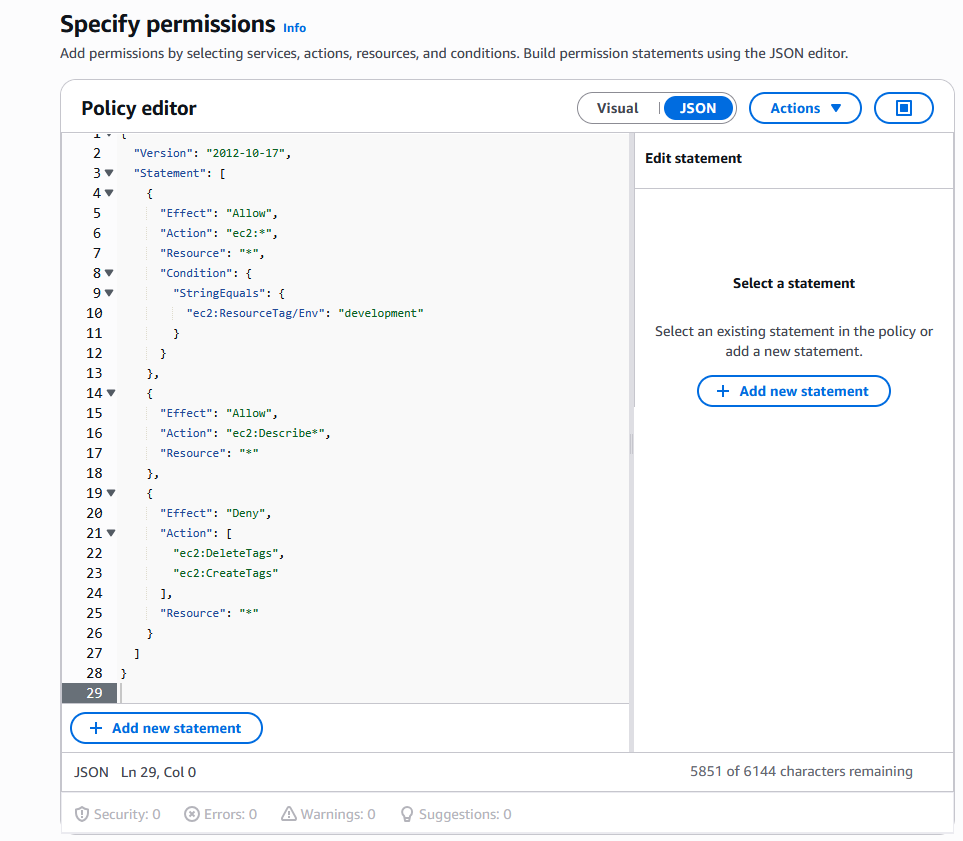
For this project, I’ve set up a policy using JSON.
Policy effect
I’ve created a policy that allows the policy holder (i.e the intern) to have permission to do anything they want to any instances tagged with “development”. They can also see information for any instance but they are denied access to delete or create tags for any instance.
Understanding Effect, Action, and Resource
The Effect, Action, and Resource attributes of a JSON policy means whether or not the policy is allowing or denying action (Effect); what the policy holder can or cannot do (Action); and the specific AWS resources that the policy relates to (Resources).
My JSON Policy
Account Alias
What I did in this step
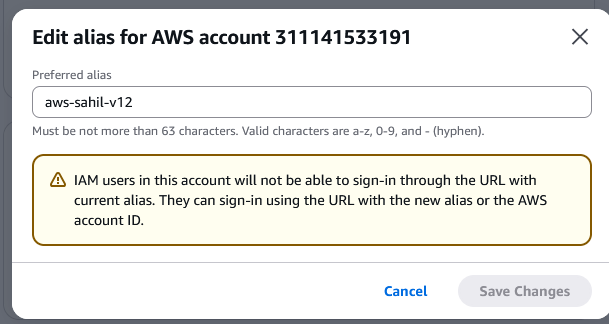
In this step, I will set up an account alias, which is like a nickname for our AWS account’s console login. This is because an account alias makes it simpler to log in for our user.
Understanding account aliases
AWS Account Alias is a friendly, unique name for your AWS account that replaces the 12-digit account ID, creating a custom sign-in URL.
Setting up my account alias
Creating an account alias took me 5 minutes.
IAM Users and User Groups
What I did in this step
In this step, I will create an IAM group for all interns so that I can manage permissions from one place. I will also set up a new user for the new intern.
Understanding user groups
IAM user groups are like folders that allow you to to manage permission for all users in a group. Groups allow you to attach same policies to those users rather than each individual users.
Attaching policies to user groups
I attached the policy I created to this user group, which means they will have access to what’s defined in that policy. Any user created inside of this group will automatically have the defined permissions in the NextWorkDevEnvironmentPolicy Policy.
Understanding IAM users
IAM users are people or entities that can log into our AWS accounts.
Logging in as an IAM User
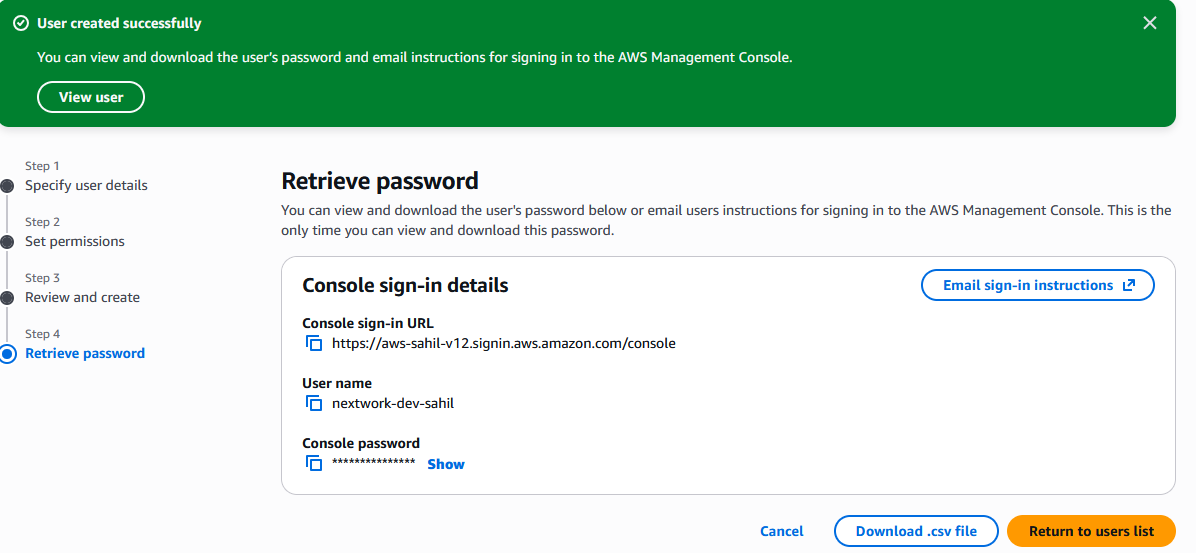
Sharing sign-in details
The first way is to email sign-in instructions to the user, second way is to download the .csv file with the sign-in details.
Observations from the IAM user dashboard
Once I logged in as my IAM user, I noticed that our user is denied access to the panels on the main AWS console. This was because we only set up permissions to our development EC2 instances, so our intern would not have access to anything else.
Testing IAM Policies
What I did in this step
In this step, I will log into our own AWS account as the intern and test access to the PROD and DEV instances because we want to make sure our intern doesn’t have the ability to do anything that affects our PROD environment.
Testing policy actions
I tested my JSON IAM policy by attempting to stop both the DEV and PROD instances.
Stopping the production instance
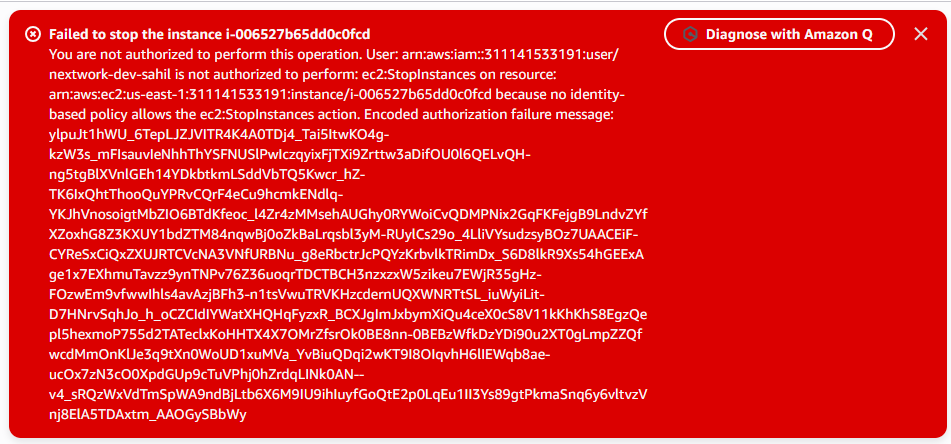
When I tried to stop the production instance I received an error ‘Failed to stop instance’ This was because the PROD instance is tagged with ‘production’ label which is outside of the scope of our permission policy. Interns are only allowed to make changes to the DEV instance.
Stopping the development instance
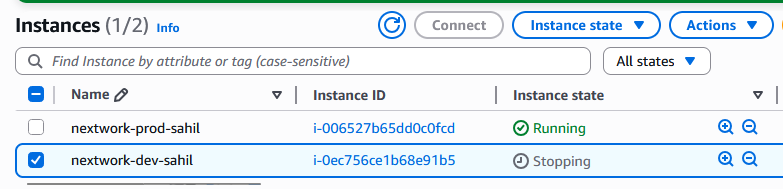
Next, when I tried to stop the development instance we successfully saw the instance stage change to Stopping and then to Stopped. This is because the permission policy allows the intern (user in the network-dev-group) to stop instances.
IAM Policy Simulator
To extend my project, I’m going to test permission policies in a safer and more controlled way using a tool called IAM policy simulator. This is a more efficient way of testing policy and access.
Understanding the IAM Policy Simulator
The IAM Policy Simulator is a tool that lets us simulate actions and test permissions settings by defining a specific user/group/role and the actions we want to test for.
How I used the simulator
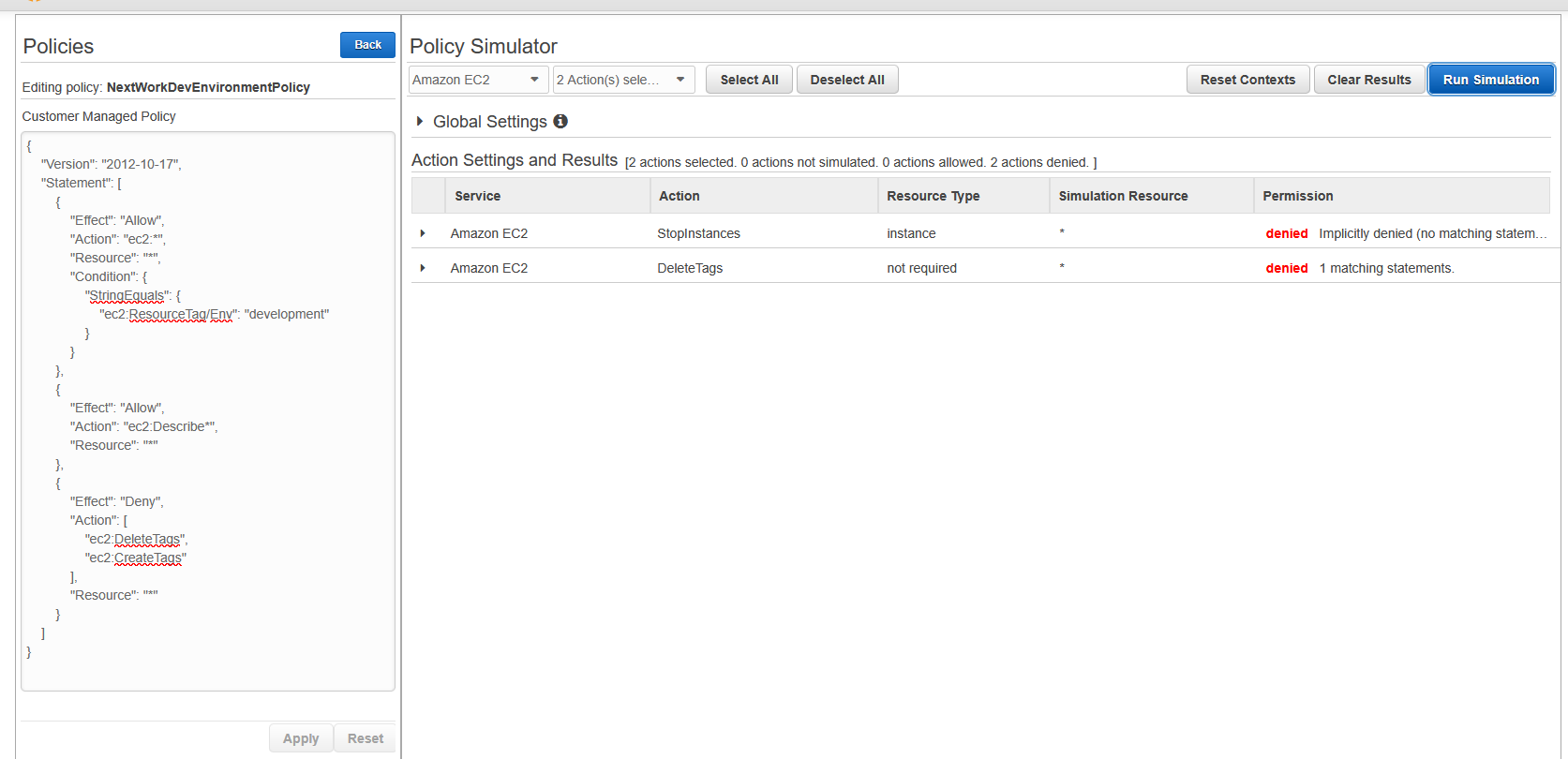
I set up a simulation for whether our dev user group has permissions to Stop Instances or Delete Tags. The results were denied for both, once I adjusted the scope of the EC2 instances to the ones that are tagged with “development” and once I applied this tag, permission was allowed.